
Four standard financial style reports come with all deployments of Reserves. Like the basic economic reports, these reports generate tabular summaries of your data based on the Variables you choose to include in the report. All of the financial style reports are meant to mimic the layout of conventional finance reports and have the added benefit of the Format report option. This will allow you to alter the appearance of your completed reports.
Financial Style Report Options
Output Type
Some of the financial style reports include the Output Type report option. Use this option to paginate your rendered report when you view it in Reserves. Choosing the Single Page option will render all of your report's tables on the same page. Choosing the Multiple Pages option will divide the contents of your report across separate pages.
Years of Monthly Data/Years of Yearly Data
Two of the financial style reports make use of these options; use them to set the duration of your report in conjunction with the Start Date option.
Output Type
In addition to the Years of Monthly Data report option, the ADHOC - Var-Dwn Attr-Bat Time-Acr (Monthly and Yearly) report includes the Years of Yearly data option. This option can be used to set the duration of your report as well.
Financial Style Report Formatting
Applying Formatting
Use the Format field in the reports' options to add formatting to your reports. To apply formatting, follow these steps:
- After accessing the Reporting part of the application, and selecting one of the reports from the Context/Report Selection pane, go to the Report Options page.
- Click on the variable you wish to format in the list of variables selected for your report.
- Enter your formatting in the Format field.
- Click the Apply button.
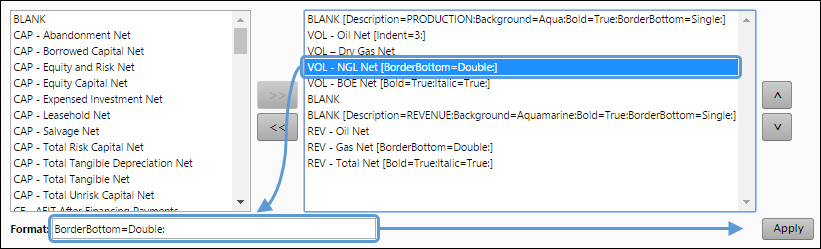
Click image to expand or minimize.
Formatting Options
All of the values listed in the Modifier column of the table below can be used to add formatting to your completed reports.
| Modifier | Possible Values | Effect |
|---|---|---|
| Bold=True: | True, False | Bold the text in cells that correspond with the formatted variable. |
| Italic=True: | True, False | Italicize the text in cells that correspond with the formatted variable. |
| BorderBottom=Solid: | Solid, Double, | Alter the character of the border on the bottom of the rows that correspond with the selected variable. |
| Decimal=2: | 1, 2, 3, 4, ...etc. | Control the precision of your values using this option. Setting a decimal value of 4 will display all variable values with 4 decimal places (e.g. 4.1234). |
| Indentation=3: | 1, 2, 3, 4, ...etc. | Use this option to indent your variable name in the table. |
| Foreground=Red: | All CSS-compatible color names are possible. | Use this option to set the text color in cells corresponding with the selected variable. |
| Background=Red: | All CSS-compatible color names are possible. | Use this option to set the background color in cells corresponding with the selected variable. |
| Description=Text: | Any text. | Use this option to replace the variable name with any text. |
Example Formatted Report
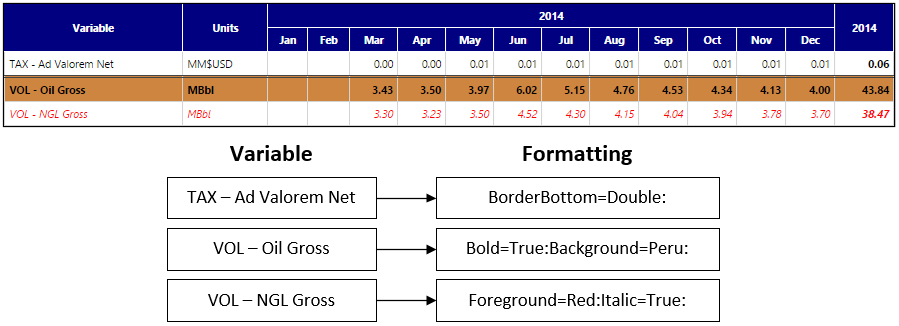
Click image to expand or minimize.
Reports
- ADHOC - Var-Dwn Attr-Acr Time-Bat
- ADHOC - Var-Dwn Attr-Bat Time-Acr
- ADHOC - Var-Dwn Attr-Bat Time-Acr (Monthly and Yearly Totals)
- ADHOC - Var-Dwn Attr-Bat Time-Acr (Monthly and Yearly)