
Reserves 5.22.0 Release Notes
Summary
Reserves 5.22.0 was released on 28 October 2026.
Notable changes and improvements in this release include:
- Workspace navigation modernization with a clearer top nav and renamed Workspace context, making it easier to scan and act. The "Reporting" menu is renamed "Workspace" to reflect that it now spans the full operational lifecycle of Reporting, Data Loading and Exporting, Documents, Reconciliation, Approvals, and Jobs.
- Streamlined Report Execution with Report and Report Options consolidated onto a single page and a new Run button, so reports run right the first time, with no more reruns caused by missed options.
- Drag & Drop file upload for Load Data, making it quicker and simpler to get files into the system.
- Quick Filter improvements including live filtering and bulk paste-to-filter, so you can find exactly what you need in seconds.
- Planning Space Dataflow to Reserves: Selection filtering by revision and reconciliation reason tag.
- Planning Space Economics to Reserves: Streamlined Economics Loading with a more intuitive, step-by-step control for Result Set Loads.
- Planning Space Economics to Reserves: Support for larger loads.
- Approval dialog visual refresh across Approve, Reject, Retract, and Submit, with notification routing now filtered by Approval Role and Data Role, so that emails reach only targeted approvers.
- Security Settings Import debug logging to make the import process observable.
- Streamlined Job Monitoring with Run State badges, an agent availability banner, and full search, filter, sort, and column control across the jobs table.
- Additional UI polish across panels and action buttons, making everyday screens quicker to read and act on.
- Bug fixes and stability improvements across the platform.
Build Numbers
- Reserves Build: PL522_20261026_5.22.0.213288
- CCM Build: CCM_20261016_1.0.0.212619
- Installer Build: 20261022.1 Build 213049
Centralized Configuration Manager (CCM) Farm Upgrades
There is a CCM farm upgrade available to support the new features in Quorum Reserves 5.22.0. If manually updating the CCM application, run the program 'UpdateCCM.exe' to upgrade your CCM farm.
Database Upgrades
No database schema upgrades required.
Migration Label Description
No migrations required.
New Features
Workspace navigation
UX Modernization: The top navigation bar has been visually modernized as part of the Reserves CX refresh. The "Reporting" context has been renamed "Workspace" to reflect that it now spans the full operational lifecycle: Report, Definitions, Data, Jobs, Documents, Reconciliation, and Approvals. The selected primary tab and sub-tab share one visual treatment, so it is clear at a glance which area and sub-view you are in, and the sub-tab reads as subordinate through position and size rather than a different color. The top-right menu now groups Configuration, Administration, and Utility items under labeled headings, with Workspace listed separately at the top. The modernized header applies across every context: Workspace, Approvals, Configuration, Data, Debugging, Integration, Jobs, Reconciliation, Report Management, Security, and About. Navigation structure, tab contents, and routing are unchanged.
Reports
- Report and Report Options consolidated: Report Options now display automatically on the same page as soon as you choose a report, instead of being on a separate page which you had to remember to visit. This removes the risk of running a report against options you never reviewed, and the 'invalid options' errors that used to follow.
- Report Options are now presented in a persistent, collapsible drawer that is expanded by default, alongside the Run section (the UI behavior here is now consistent with the rest of the application).
- Run button: A labeled 'Run' button has been added to the Report Options page.
- Report History: A persistent drawer has been added to the Reporting UI so that previous reports can be found and re-run without hunting for where history lives. It is collapsed by default, shown as a thin vertical rail with an expand chevron.
- Report Running: Reports can now be run in two ways, either a single click on a hierarchy node followed by 'Run', or a double-click on the node to run immediately.
Data loading and file uploads
- Live Filter: The Quick Filter now narrows results progressively as you type and highlights the matching text, with no checkbox needed to apply it.
- Bulk Filter: You can paste a list of values, one per line or comma-separated, to narrow the hierarchy to every matching element at once; each active value appears as a removable chip.
- Drag & Drop: The file upload has been updated to allow drag-and-drop, making it quicker and simpler to get files into the system.
- Data Loading – file upload message: On the 'Data > Load Data' screen, the message shown after choosing a file has changed from "Successfully uploaded <filename> (<size>)" to "<filename> (<size>). Ready to load. Click Load to import into the database." The previous wording implied the data was already in the database when the Load button still needed to be clicked. This is a text change only; the load behavior itself is unchanged.
Approvals
- Approval dialog visual refresh: The Approve, Reject, Retract, and Submit dialogs now use the same UI visual layout.
- Approval Service Notifications – filter distribution list: Approval notification emails can now be filtered by Approval Role and Data Role, so an approval email reaches only the approvers responsible for that specific region or field, instead of every approver at the next level regardless of region.
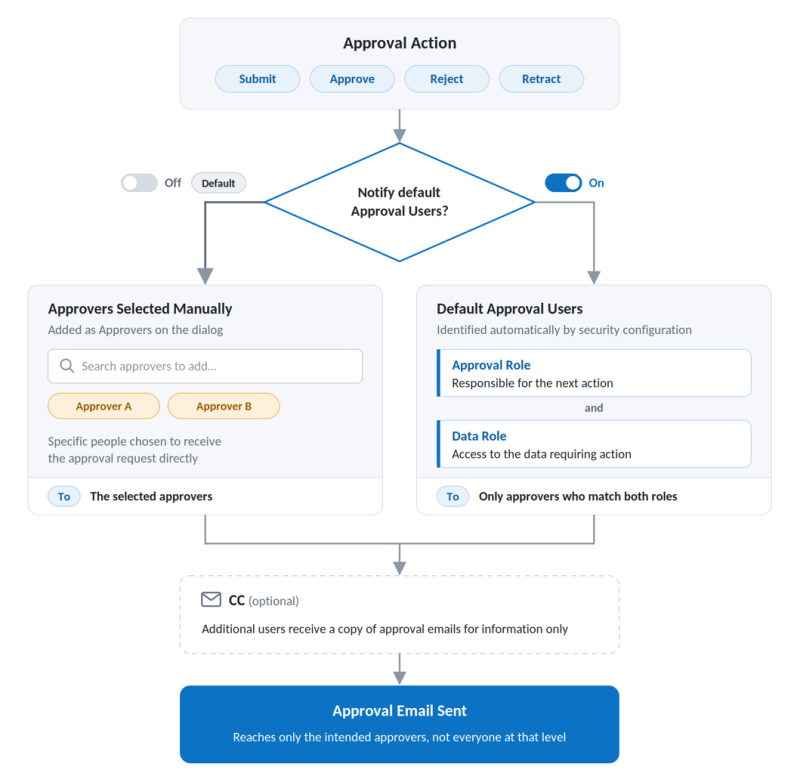
- Approval Notification Workflow: All approval actions (Submit, Approve, Reject, and Retract) support the same two ways of notifying people: selecting approvers manually, or relying on the system's default Approval Users. In the first case, you use the 'To' field to manually insert specific people to receive the approval request directly, and they are added as Approvers on the dialog. In the second case, the 'To' field is populated by the list of Default approvers who need to take the next action in the approval process: those responsible for it (Approval Role) and with access to the data requiring approval (Data Role), which is automatically determined by security configuration. When enabled, only those approvers are notified, instead of everyone at that level. In either case the optional 'CC' field can be used to copy additional people on the notification (they will receive a copy of the the approval emails for information only). The diagram below shows the two workflow options.
Jobs snd status visibility
- Jobs Tab – UX Modernization: The Jobs tab brings Run State badges, an agent availability banner, and a color-coded log panel together on one screen.
- Agent availability banner: Shows one of three states: Responding (all agents healthy, jobs can be submitted), Marginal (one or more agents slow to respond, jobs may be delayed), or Not Responding (no agents available, jobs cannot be processed). It includes a retry action but no dismiss option, so that an active issue can’t be hidden while it is blocking jobs.
- Search and filtering: A global search box filters the job list live while typing, matching against any column, including columns that are currently hidden. Every column also has its own filter.
- Active filters: These appear as removable chips above the table, with a 'Clear all' option.
- Sorting: Clicking a column sorts it; shift-clicking sorts by multiple columns at once.
- Column visibility: Any of the twelve columns can be shown or hidden.
- Resizable layout: A single resize rail trades space between the job table and the log panel in either direction, so either section can be expanded for a closer look without losing the other.
- Log download: The log panel includes a download option, so job logs can be saved and shared outside the application.
- Scheduled jobs (Processes) – log status: The overall status shown for scheduled jobs now reflects the actual business-logic outcome (Failed, Completed with Errors, or Succeeded) rather than only whether the job's run method was triggered. Previously, automated export jobs could show 'Succeeded' even after a fatal error, and the only way to catch the failure was to check the logs directly.
- Scheduled & Manual OData reload tasks now display the actual Result Set Instance name and its associated definition, instead of a generic label. Tasks follow the pattern '<Action> - <Instance Name>: <Associated Definition Name>'.
UI improvements
- Reserves Panel – icons: Icons have been added next to field labels and section headers in the left panel, making controls easier to identify at a glance.
- Action buttons – visual treatment: The primary action button on the Load Data, Export Data, and Update Data screens is now visually distinct, so the main action on each screen is easy to spot and execute. Export Data and Update Data also receive a chip counter that shows how many items are selected, so the selection can be confirmed before running the action.
- Date Picker – configurable max date: The maximum selectable date, previously fixed at '2099', is now configurable, so date pickers throughout Reserves can now support entries to 2100 and beyond (see 'Configuration > Settings > Global Settings: DatePicker.MaxYear').
- Updaters – dictionary control styling: The dictionary (drop-down) option control type used in data loaders now has an updated visual style.
Planning Space-Reserves integration
- Planning Space Dataflow to Reserves: Added Dataflow selection filtering by revision tag and reconciliation reason tag.
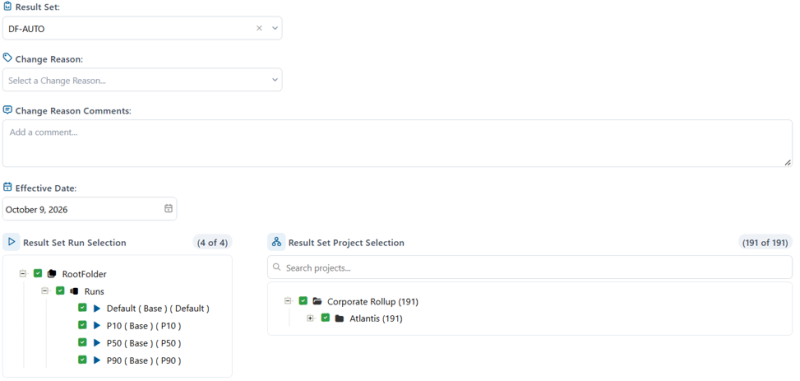
- Planning Space Economics to Reserves: Streamlined Economics Loading with a more intuitive, step-by-step control for Result Set Loads. The 5 sequential steps are: (1) Result Set Filter (searchable dropdown); the user browses and selects from all available result sets without needing to know the exact name upfront; (2) Change Reason — dropdown surfacing only the reasons relevant to the PSE context, as configured by Administrators or Services; (3) Change Reason Comments — free-text field for additional audit context, spanning the full width of the control; (4) Effective Date — a date picker with a Date/Month toggle (Date mode shows a day-grid calendar for picking a specific day, Month mode shows a 12-month grid for picking a whole month instead, for runs evaluated as of a month rather than an exact date); (5) Result Set Run Selection and Result Set Project Selection — side-by-side checkbox trees, separated from the fields above by a divider (expand/collapse per node and project function was introduced to facilitate easier identification of economics projects). The image below shows the Economics Loader UI.
- On 'Data > Data Versions > Loader Option Definition', a new Control Type is available: 'External PlanningSpaceLoader Economics - Single Result Set'. To use the new loader option, existing code referencing 'PlanningSpaceLoaderSetup' should be changed to use 'PlanningSpaceEconSingleResultSetLoaderSetup'.
- Planning Space Economics to Reserves - Improvements to support larger loads. New configuration settings allow implementation services to tune how Planning Space Economics loads are batched and written to the database, allowing for much larger loads to complete without memory issues. Sensible values are set as defaults. There are two new settings under 'Configuration > Settings > Settings': 'PlanningSpacetoReserves.ProjectRequestLimit' (how many projects to pull from the Planning Space API per batch; default = 100); 'PlanningSpacetoReserves.BatchInsertLimit' (how many batches to accumulate before writing to the database; default = 1). The settings as context-specific and should be associated with the context in which the Planning Space Economics Loader was defined.
Administration
OData role names: 'Admin Role' has been renamed 'Access Role' on the 'Data > Result Set > Definitions' page. The role was never restricted to administrators: it is required by any user who reads a result set or approves an object, and the new name reflects that.
'About' page
- The Reserves 'About' page has been updated to show product build, license status, and account/role information in a clean layout.
- License Expiry Warning: When 30 days or less remain for a license, the About page will show a visible warning, so that account details can be easily confirmed, and action taken before access is interrupted.
- User Application Key Expiry Warning: When 5 days or less remain, the About page will show a visible warning so that the key can be renewed before access is interrupted. This applies to both integrated Planning Space authentication and to Okta authentication.
Other features
Settings & Security import – Selenium-compatible file picker: The file picker for Settings and Security import now uses a standard file input control, matching the Selenium-enabled control already used for Metadata import, and enabling automated testing of these uploads.
Security improvements
- Security Settings Import – debug logging: Debug logging has been added to the security settings import process, recording every change that gets applied. This makes it possible to confirm exactly what an import changed without reproducing it manually in production, closing a long-standing gap where security.xml could import successfully without every change taking effect in the running application.
- Server file access hardening: Added protection to prevent internal server files from being accessed directly over the web, closing a gap identified during an external security assessment.
Issues resolved
- Product Group Import – group items not overwritten: Fixed an issue where mismatched group items were not overwritten during a Product Group import, even when the overwrite option was selected.
- ValNav integration – truncated attributes: Fixed an issue where the ValNav integration load truncated attribute values due to a mismatched column data type; attributes now load using the full configured length.
- Approval Workflow – skipped rejection at an approval level: Fixed an issue where rejecting in reverse through a workflow with skip-level thresholds could skip the rejection of an intermediate level, leaving retraction available at the wrong level.
- Reconciliation Group Import – removed entries not synced: Fixed an issue where reconciliation group entries no longer present in the import file were not removed during an Overwrite import; entries are now synced correctly.
- Resource Editor – Cumulative Production could not be edited: Fixed an issue preventing edits to Cumulative Production in the Resource Editor from saving in environments without Approvals configured.
- Result Set Instances – display and multi-context creation: Fixed two issues on the Result Set Instances page: the version name could intermittently display as a version ID, and creating result set instances across multiple contexts could leave later instances empty.
- Document Manager – upload blocked at object level: Fixed an issue where the Create button was disabled when uploading a document at the object level.
- Result Set Instances — orphaned scheduled tasks: Fixed an issue where deleting a Result Set Instance did not remove its attached scheduled task, leaving orphaned tasks behind.
- Task Launcher registration: New instance deployments now register the Task Launcher automatically, removing a manual setup step.
- Result Set Instances — scheduled tasks not fully cleared: Fixed an issue where removing scheduled tasks from a Result Set Instance, or disabling Auto Reload Data, could leave one or more tasks behind in the scheduler.