
There are two variants of the Standard Reserves Report. The standard report, along with its two variants are described below:
001 Standard Reserves Report
Report Overview
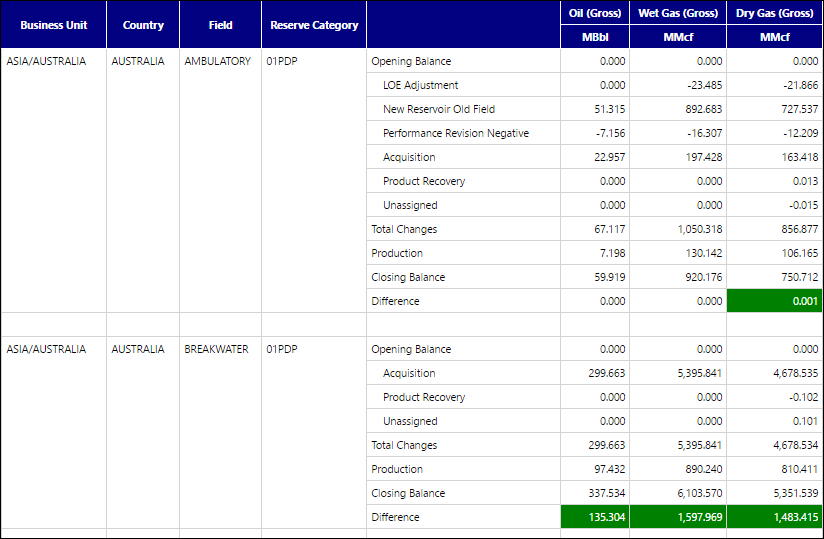
Use the Standard Reserves Report to view information about changes in your reserves at a specified date (snapshot), based on the Reserve Category Group and the Product Group you select for the report. The table generated by this report will show:
- A summary of the balances and adjustments for all objects included in the report, categorized by reserve category.
- The opening balance, closing balance, and difference (adjustments) for each product from the product group selected for the report. Cells in the Difference rows turn green to indicate a positive difference, and red to indicate a negative difference.
- The total production for each product included in the product group selected for the report.
Example Report
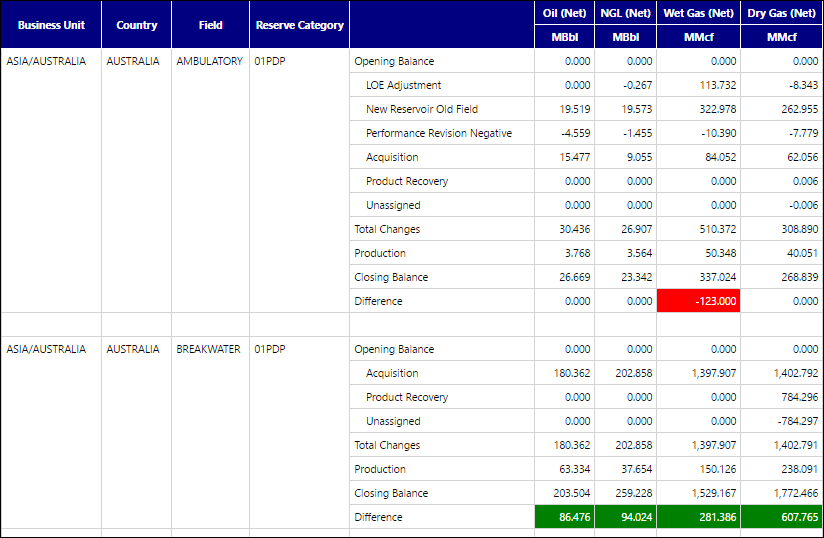
Click image to expand or minimize.
Report Options
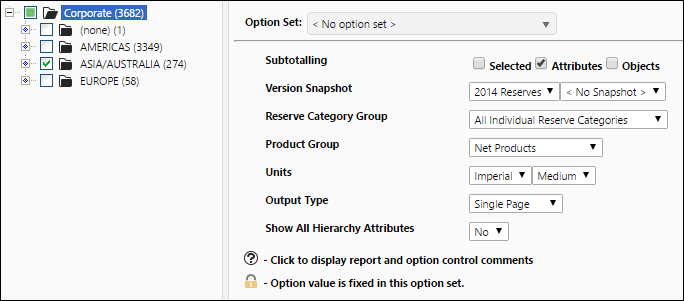
Click image to expand or minimize.
001 Standard Reserves Report (Change Category Group)
Report Overview
The format of the table generated by this report is identical to the one generated by the Standard Reserves Report and it will display the same type of information about your reserves. However, the report options have changed:
- You now have the option to select what change categories will be included in the report using the Change Category Group report option.
Example Report
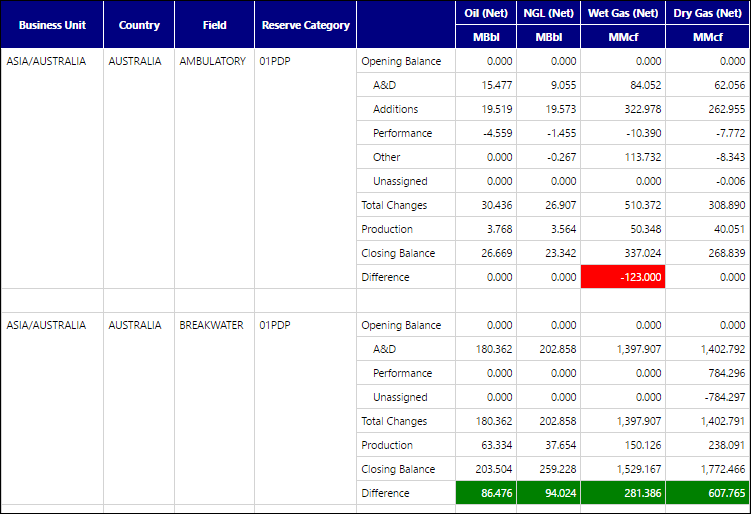
Click image to expand or minimize.
Report Options
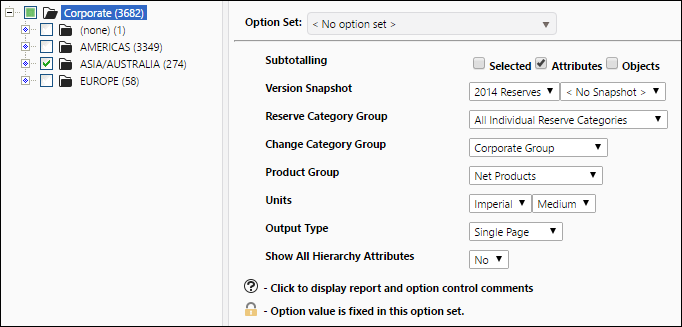
Click image to expand or minimize.
001 Standard Reserves Report (Non Group Options)
Report Overview
The format of the table generated by this report is identical to the one generated by the Standard Reserves Report, and it will display the same type of information about your reserves. However, the report options have changed:
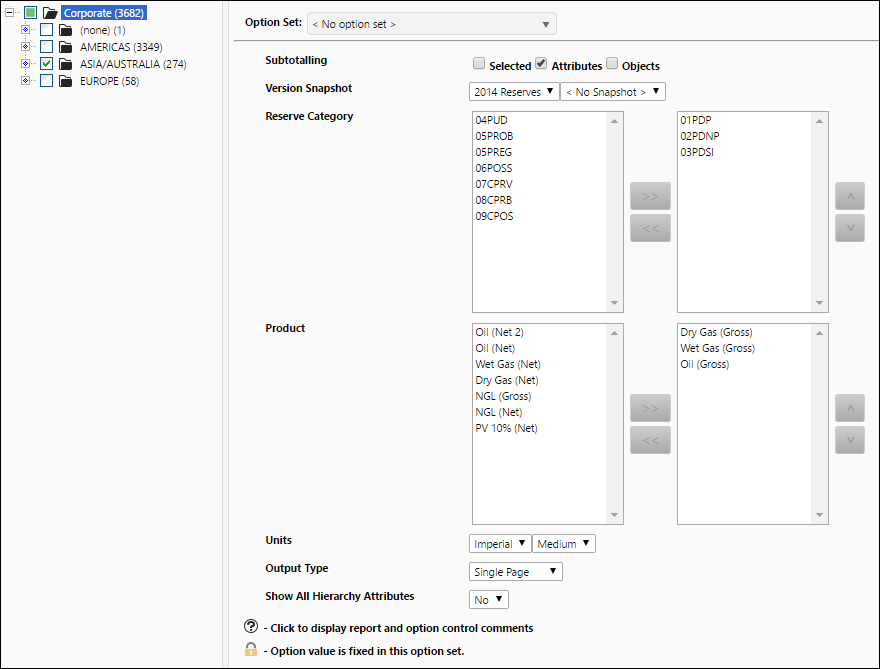
- Instead of selecting a product group and reserve category group for your report, you can select specific products and reserve categories to include in your report.
Example Report
Click image to expand or minimize.
Report Options
Click image to expand or minimize.