
Add a new regime
To create a new regime:
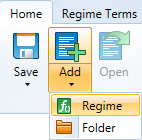
- In the Regime Library explorer, select the Regimes folder, or any lower-level folder, and click the Add button in the Home tab on the ribbon, and select Regime (alternatively, right-click a folder and select Add > Regime from the context menu).
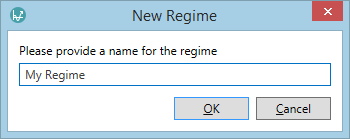
- The New Regime dialog will open.
- Enter the name of the new regime and click OK.
The maximum length is 50 characters and names can only contain alphanumeric characters and
( ) - _ ". - The new regime will appear in the Regime Library explorer.
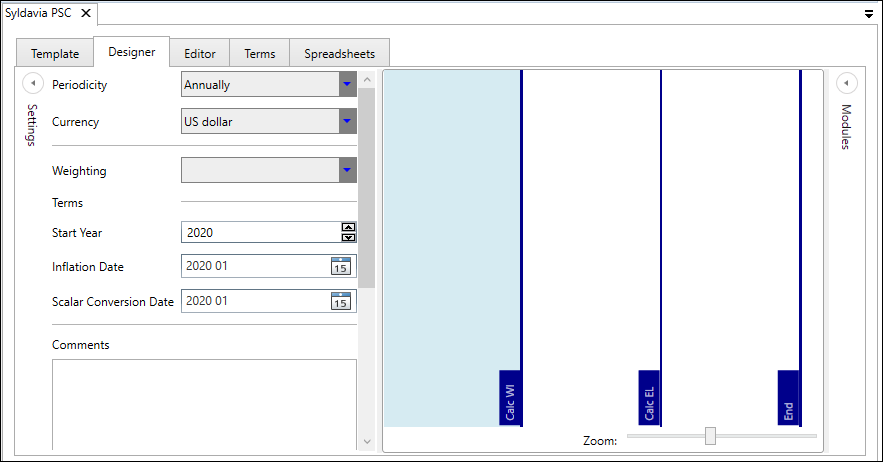
- Open the regime by double-clicking it. When the regime is opened, the Designer tab will be displayed. Here the Periodicity, calculation Currency and Comments (any text to describe the regime) can be specified. You should set the periodicity to that which is used for the majority of the fiscal calculations (you can override this setting for specific modules if necessary). For more information, see Designer tab.
- Modules are also added in the Designer tab. For more information on adding modules, see Create a module.
- The final step of customizing a regime is to link reports. For more information on this, see Add a report to a regime.
The Fiscal Year-End setting can be used to set annual calculations to run for fiscal years instead of calendar years; this specifies the end month of the fiscal year. See Fiscal Year regimes.
Access to a regime can be restricted. To define access for users and workgroups, right-click the regime and select Permissions (see Regime permissions).