Export data to CSV
You can export project properties, variable values and other information from
- Click the CSV button
 on the ribbon and the CSV Export screen will be displayed.
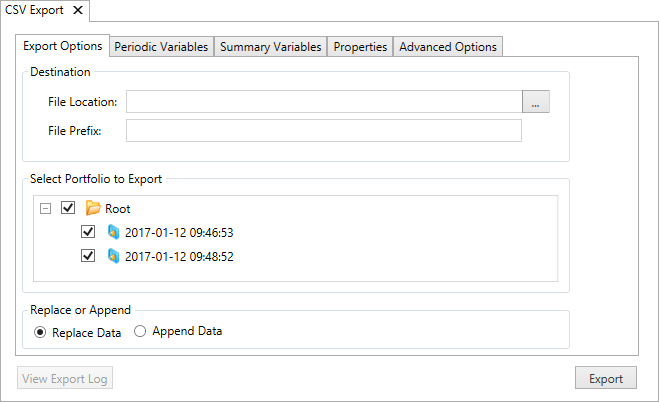
 - Click the Export Options tab.
- In the Destination section, select a CSV file into which the data will be exported and a CSV template.
- In the Select Portfolio to Export section, select the data you wish to export to CSV.
- If the selected file contains data, choose an option in the Replace or Append section. You can either replace existing data with the exported data, or add the exported data to the existing data.
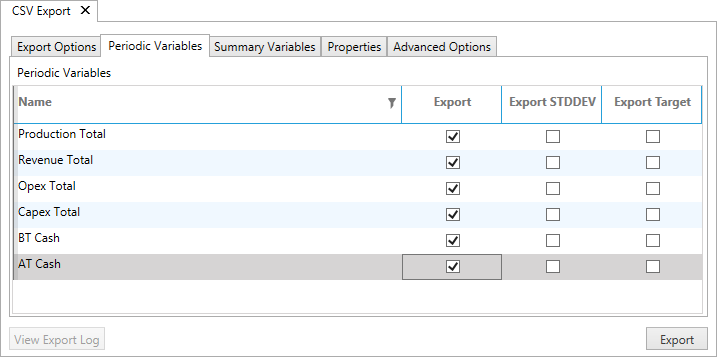
- Click the Periodic Variables tab.
- Select items to be exported by checking boxes next to their names. You can also export standard deviation values (STDDEV), for example, when you have several scenarios, and targets.
- Click the Summary Variables tab. Summary variables are selected in the same way as periodic variables.
- Click the Properties tab. Properties are selected in the same way as variables.
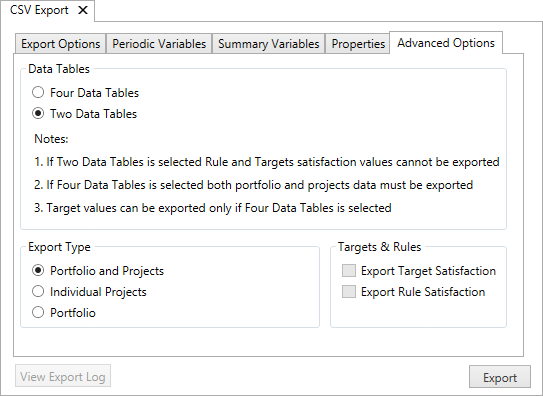
- Click the Advanced Options tab.
- The Data Tables section determines how many data tables will be created in CSV. The Two Data Tables option will create summary and periodic tables for your projects and portfolio combined together. The Four Data Tables option will create summary and periodic tables for projects, and summary and periodic tables for the portfolio. The tables are populated depending on what you selected in all sections of this screen. For example, if you select Projects Only in the Export Item Type section and Four Data Tables in the Spotfire Data Table Option section, only the tables with project data will be populated while tables with the portfolio data will be empty.
- In the Export Type section, select whether you want to export your portfolio (total values for all variables), your projects (values for individual projects), or both.
- In the Targets & Rules section, you can specify whether to export target satisfaction and rule satisfaction. These options are available only if the Four Data Tables option is selected in the Data Tables section.
- Click the Export button.